
Introduction
This free Excel Gantt Chart template is designed for professionals who manage projects on a daily basis and need a simple, reliable scheduling tool.
It provides a clean and structured layout for visualizing tasks, timelines, and progress without requiring any macros or complex configuration.
Because the template is completely macro-free, it is safe to use in business environments where security restrictions often prevent VBA execution.
With three ready-to-use sample versions included, you can immediately start building a daily project schedule that fits your workflow.
What is a Gantt Chart?
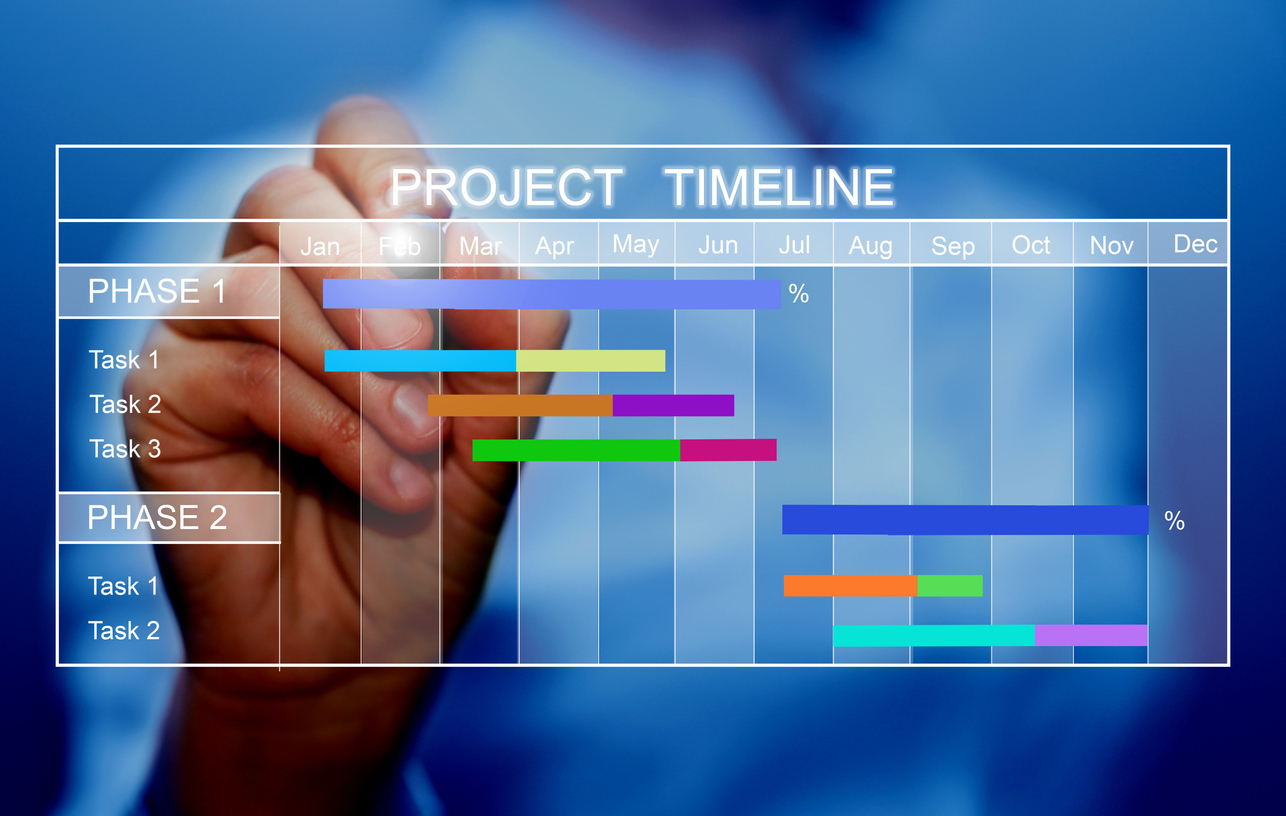
About Gantt Charts
A Gantt Chart is a widely used project management tool that visualizes tasks across a timeline.
Each task is displayed as a bar representing its start date, end date, and duration, allowing teams to easily understand the overall project structure.
By presenting the project as a timeline-based chart, it becomes much easier to identify dependencies, overlaps, and delays.
Use Cases
Gantt Charts are used across various industries—IT, marketing, operations, event planning, manufacturing, and many others.
They are especially effective when managing schedules that involve multiple team members and frequent progress updates.
- Daily and weekly project scheduling
- Task and workload management for each team member
- Detecting task delays and readjusting priorities
- Preparing project reports and presentation materials
- Managing marketing campaigns, events, or internal business operations
Template Overview
This template is a macro-free Excel Gantt Chart that allows you to manage tasks, assignees, progress rates, and status in an organized daily schedule.
All bar charts are drawn manually using cell colors or bar objects, ensuring full compatibility even in organizations that do not allow VBA macros.
The clean design makes it easy to print, share, and present your schedule internally or externally.
- Daily-format Excel Gantt Chart
- No VBA or macros – 100% safe for corporate environments
- Task management with Assignee, Status, and Progress Rate
- Clear bar-chart visualization for schedules and progress
- Manual bar drawing (cell color or object-based)
- Optimized for printing (A4 landscape layout)
- Includes 2026 calendar dates
- Three sample files included, ready for immediate use
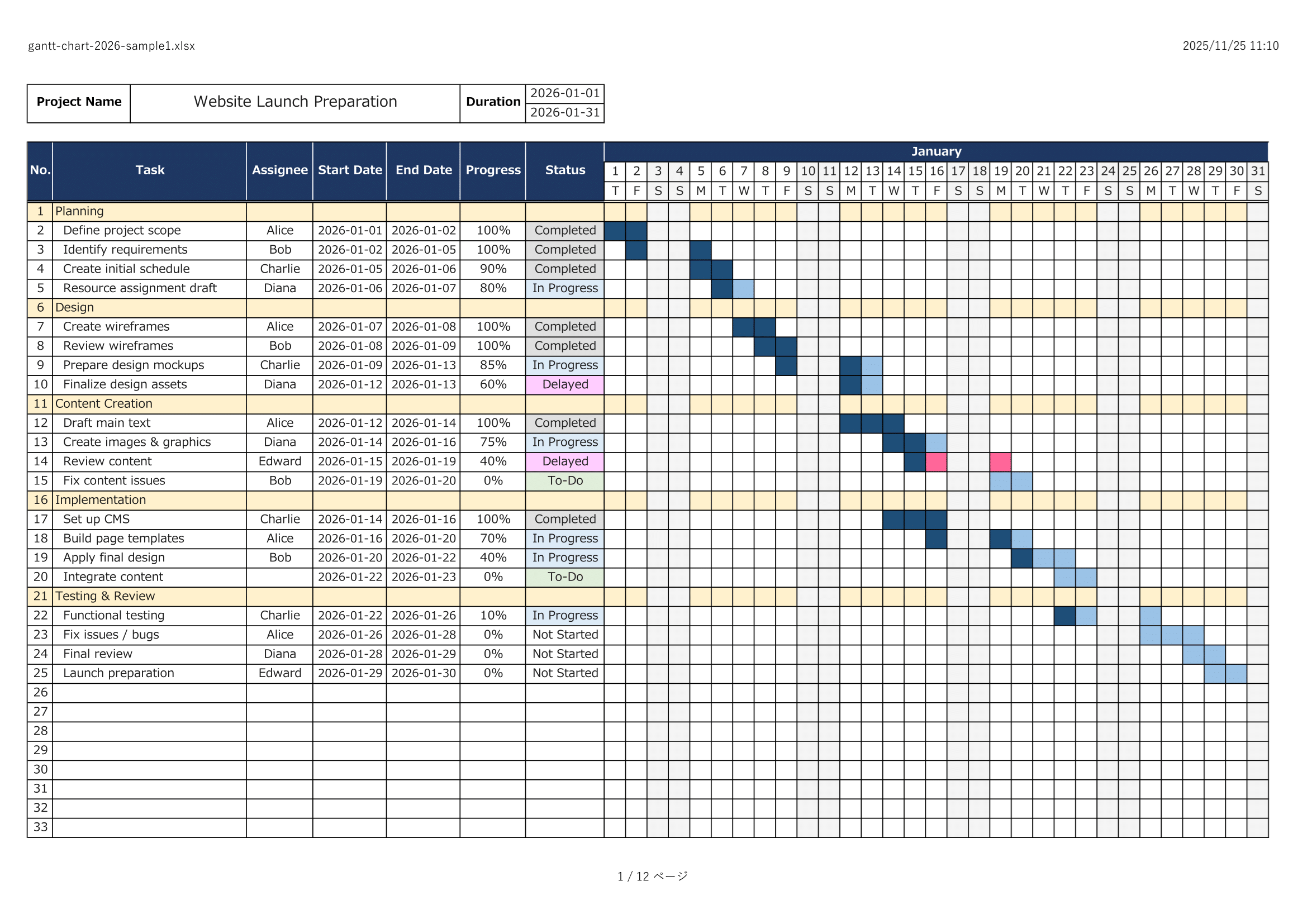
- Sample using cell background colors
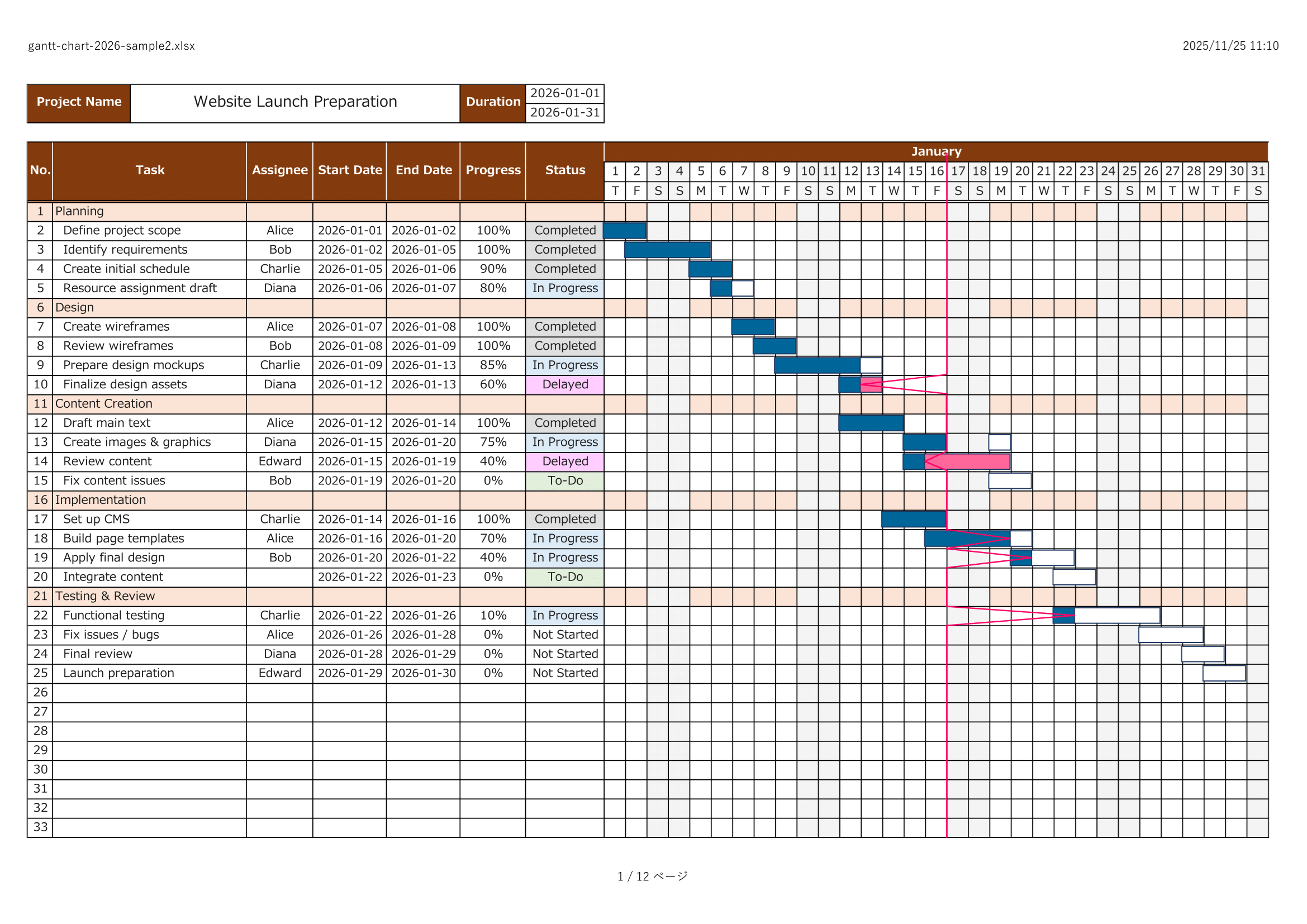
- Sample using object bars (with zig-zag connectors)
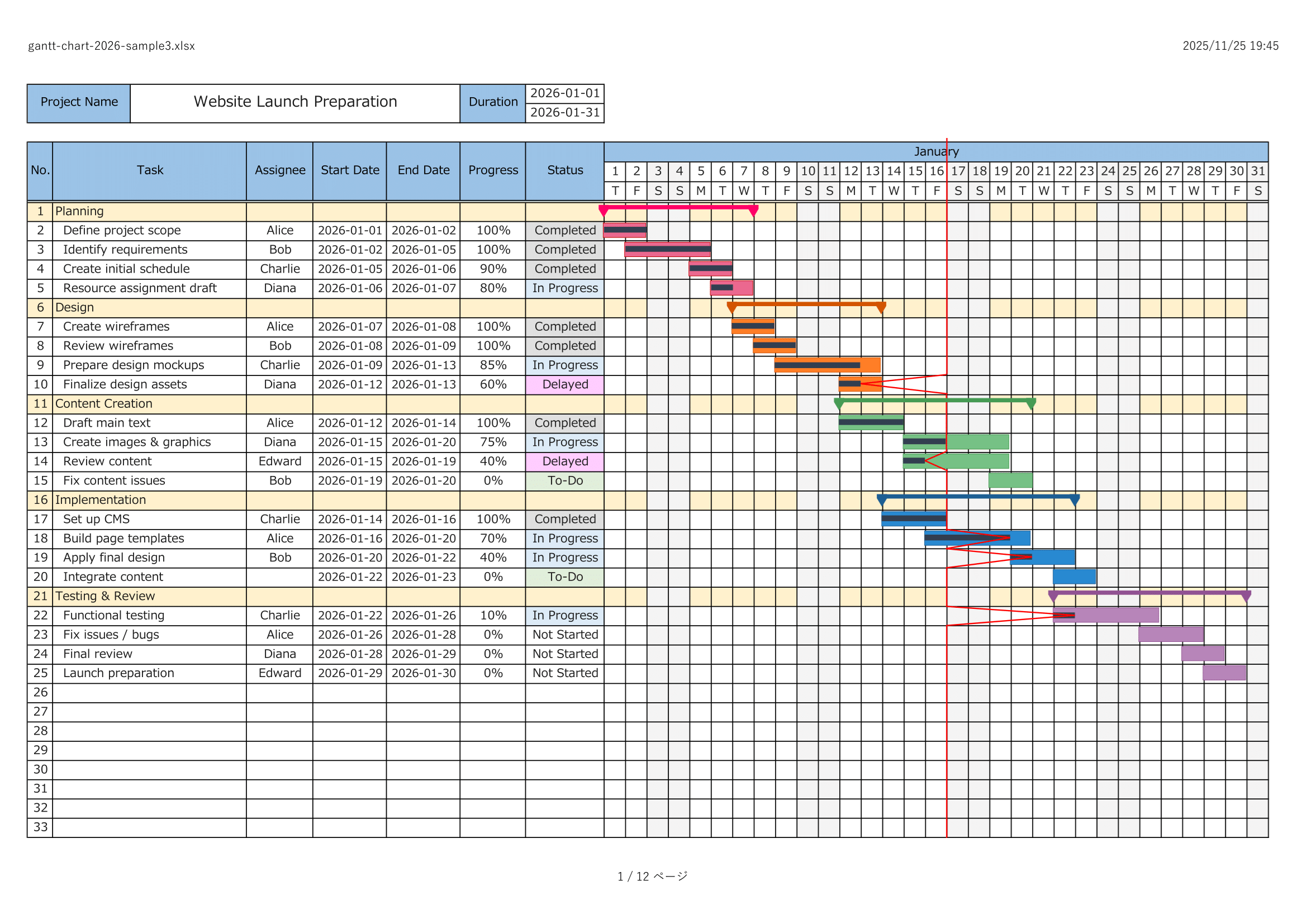
- Colorful sample (with zig-zag connectors)
Key Features
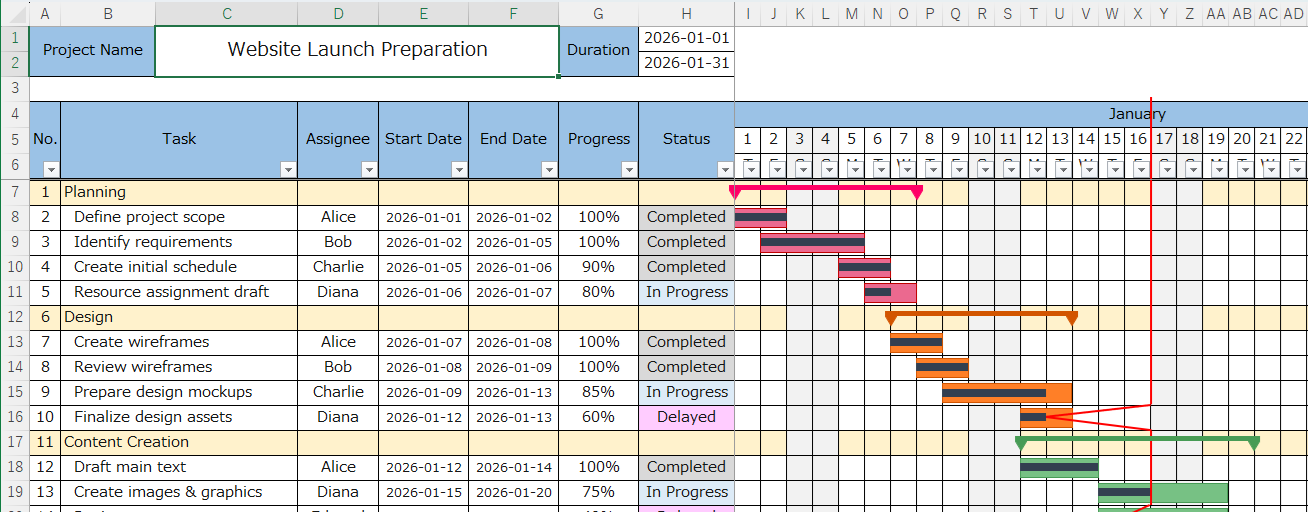
Beautiful Gantt Chart Visualization
The template enables you to create a clean and visually appealing project timeline.
Whether you choose cell-based bars or object-based bars, your schedule remains easy to read and intuitively structured.
This helps teams quickly grasp project progress during meetings or status reviews.
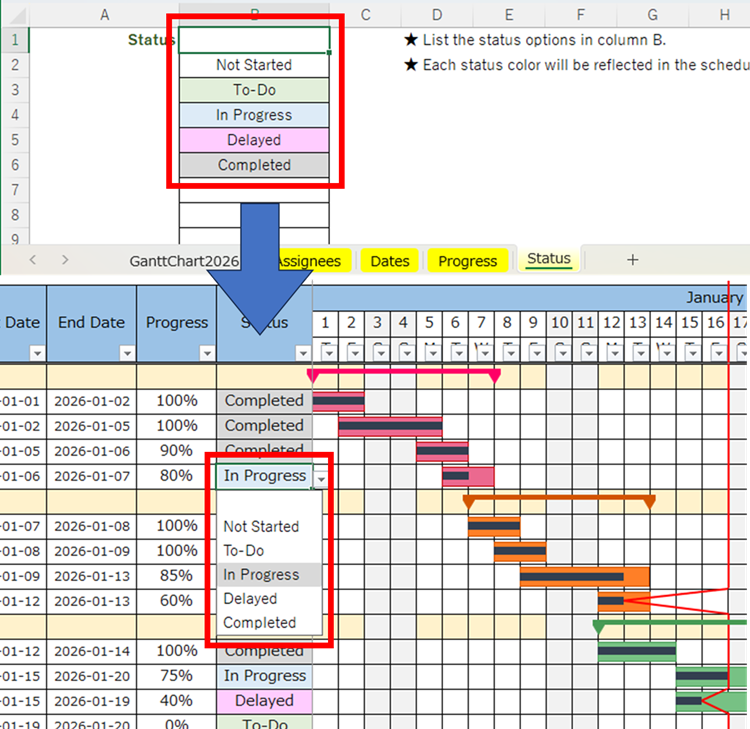
Input Support for Assignee, Date, and Status
Dropdown lists are available for assignees, dates, progress rates, and status selections.
This reduces typing errors and helps maintain consistent data formatting across the entire project file.
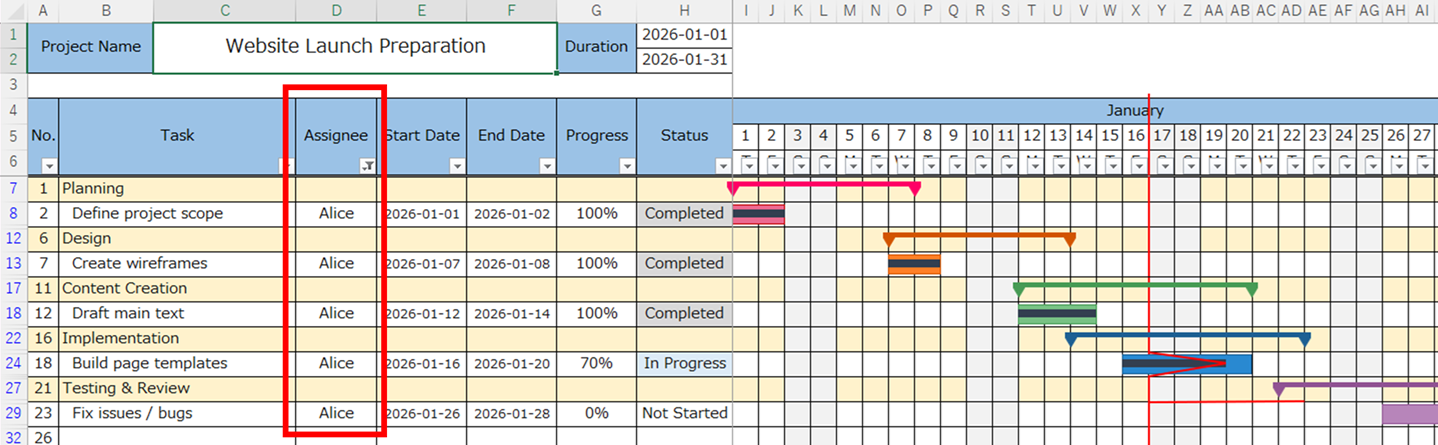
Filtering by Assignee, Date, and Status
Excel’s built-in filtering allows you to sort or filter tasks based on assignee, date, or status.
This is especially helpful when identifying delayed items, reviewing work assigned to a specific team member, or preparing progress reports.
Excel Gantt Chart Templates
Looking for more Excel Gantt chart templates?
This page lists all of the English Gantt chart templates currently available on Excel-NEXT.
Each template is free to download and designed for practical project scheduling—whether you need a daily plan, a weekly overview, or a long-term monthly roadmap.
We will keep adding new Gantt chart formats over time. For now, please use the links below to jump to the template that best fits your planning style.
-
Daily Gantt Chart (VBA Auto-Drawing)
A macro-enabled daily Excel Gantt chart that automatically draws bars from your schedule data for fast updates. -
Daily Gantt Chart (Manual, Macro-Free)
A simple, macro-free daily Gantt chart you can fill in manually—safe and easy to use in most work environments. -
Weekly Gantt Chart (Manual, Macro-Free)
A weekly Excel Gantt chart for tracking projects by week—ideal for medium-term planning and status reporting. -
Monthly Gantt Chart (Manual, Macro-Free)
A monthly roadmap-style Gantt chart with early/mid/late month blocks—great for long-term planning and portfolio overviews.
Tip: If you are new to Excel Gantt charts, start with the sample file first. It will help you understand how to fill in the schedule and visualize progress quickly.
Download
Sample Template – Cell Color Version
A simple and lightweight sample that uses cell background colors to draw Gantt bars.
Ideal for users who prefer a clean and minimal visual style.
Sample Template – Object Bar Version (with Zig-Zag Lines)
This version uses shape objects to draw task bars, including optional zig-zag connectors for clearer visual separation.
Useful for projects that require more detailed visual cues.
Sample Template – Colorful Version (with Zig-Zag Lines)
A more colorful sample designed for presentations or visually rich reports.
It is useful when you need a more expressive and easy-to-understand project timeline.
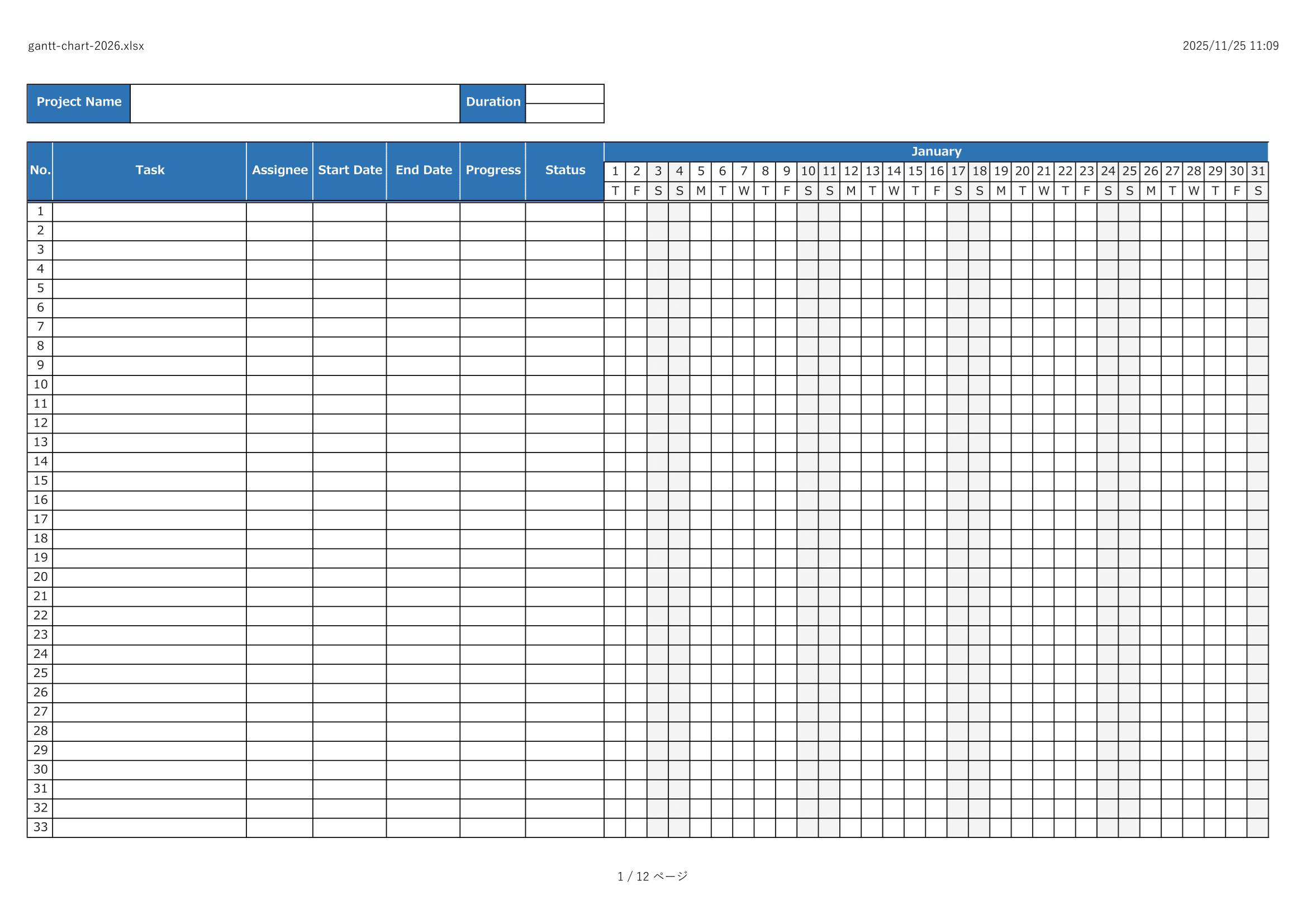
Blank Template
A clean, no-sample version that allows you to build your project plan from scratch.
Recommended for users who prefer full customization.
⚠ Disclaimer
This template is provided as-is, without any warranties or guarantees of accuracy, reliability, or fitness for a particular purpose.
The creator assumes no responsibility for any losses or damages resulting from its use.
Redistribution, resale, or modification of this file for commercial purposes is strictly prohibited.
How to Use
- Download the template file.
- Enter the project name.
- Set the start and end dates.
- List your phases and tasks.
- Enter the assignee, start date, end date, and status for each task.
- Draw the Gantt bars using cell colors or bar objects.